
In Teams, you can block, report or unblock anyone outside your org who uses Teams or Teams for personal use.
- When you block someone, they can't communicate with you in Teams. They also can't view your status.
- When you report someone, their contact and messages will be shared with your IT admin for review. They won't know that you reported them.
- When you unblock someone, they can't communicate with you in Teams. And they can't view your status.
Note
It’s easy to accept or block people outside your org.
Block and report a person
There are a couple of ways you can block and report someone in Teams.
Block a person in the chat list
- In the chat list, find the person you want to block, and select More options
 > Block.
Block and report a person in the chat request
- In the 1:1 or group chat request, select Block, Delete or Leave depending on the chat type and your organization's settings. If you also want to report the person, select Report this person in the pop-up window.


Block and report a person on their profile card
- Hover over the person’s profile picture to open their profile card.
- Select More options
> Block contact.
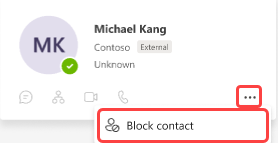
- If you also want to report the person, select Report this person in the pop-up window.
Unblock a person
There are several ways you can unblock someone in Teams.
Unblock a person from the chat list
- In the chat list, find the person's name, and then select More options
> Unblock.
Unblock a person from their profile card
- Select the person’s profile picture to open their profile card.
- Select More options
> Unblock contact.
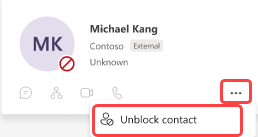
Unblock a person from settings
- Select Settings and more
 next to your profile picture.
 - Select Settings > Privacy > Edit blocked contacts.
- Find the person you’d like to unblock, and then select Unblock.